If you're viewing this page it probably means you're having difficulties printing or finding the information you need. If you don't find a solution to your trouble in the tips below, call me at 742-8957 or send email, and I'll help you through the difficulty.
Note that many of these instructions apply only to PC's with Windows operating systems (XP, Windows 7, etc.)—sorry, Mac users. Also note that this website is optimized for the Internet Explorer browser and for viewing on monitors with resolution of 1024 by 768 pixels or greater.
Frames
This site uses "frames," the two different windows you now see: the one containing
this text and the one at the left where you found the link to this page.
Frames are sometimes confusing for users not familiar with printing and
accessing frequently updated pages that use frames. If you are having
trouble printing or viewing the most current version of a particular page
(or frame), the instructions below may help.
Go to: Printing problems; outdated pages; problems loading online exams or forms
"I have trouble printing the page I want." Especially, "When I print a page, it prints the left frame with all the links, which I don't need to print."
Internet Explorer
Depending on the software setup on the machine you are using, you may have
difficulty printing only the frames you want: Explorer may
print both frames (the full screen on your monitor), just the left frame,
or just the right frame. For all items you will need for our
class, you will want to print only the larger, right-hand frame. If
you print a particular page and do not get the desired results, try
the following:
Right-click in any non-linked space in the appropriate frame and select "print": if a printer menu window opens, click the "print" button.
Or:
Google Chrome
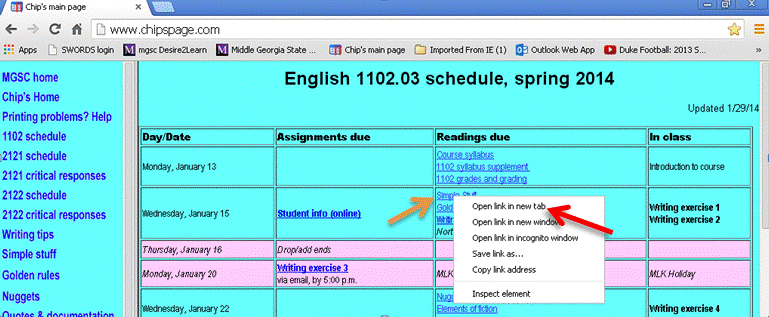
Chrome displays frames adequately, but definitely does not like frames when it comes to printing. Typically Chrome prints all frames together, when for all items you will need for our
class, you should print only the larger, right-hand frame. Either of the following will allow you to print only the frame you need.
So in the screenshot below, if you right-clicked the "simple stuff" link, then you'd select "open link in new tab" and print from the new tab.
Mozilla Firefox
Firefox, too, may
print both frames (the full screen on your monitor), just the left frame,
or just the right frame. For all items you will need for our
class, you will want to print only the larger, right-hand frame. If
you print a particular page or frame in Firefox and do not get the desired results, try
either of the following:
"The printed pages are hard to read and I'm wasting ink because the onscreen background is printing along with the text."
Your browser may be configured
to print backgrounds for all web documents. You can change this setting
in Internet Explorer by selecting "Tools," then "Internet Options," and then
the "Advanced" tab. Scroll down to the "Printing" section and uncheck
the "Print background colors and images" option. In Firefox, click "File" and then "Page Setup"; on the "Format and Options" menu uncheck "Print Background (colors and images)." At this date in February 2014, Chrome does not allow background color printing, so it shouldn't be a problem for Chrome users.
"I'm looking for an assignment, a link, or an updated page that is supposed to be posted already, and I keep getting the old one."
It may be that the information you are looking for has been posted but your browser is using a "cached" version of the page (saved on your computer) instead of retrieving the new version from the Internet. For instance, if you know that Paper 2 has been assigned but you find the Paper 1 assignment when you follow the proper link—or if you see an old version of the course schedule when you know it has been updated—you may need to "reload" or "refresh" the page or frame.
In Internet Explorer, right-click anywhere in the right frame and select "refresh" from the drop-down menu to load the most recent version of the page.
In Firefox, try clicking the "Reload current page" button or right-clicking any non-linked space in the appropriate window, then selecting "This Frame" and choosing "Reload Frame." Refresh or reload pages or frames in Netscape by clicking the "reload" button or by right-clicking in the appropriate frame and selecting "reload frame" from the drop-down menu.
In Chrome, right-click and select "reload frame" (not just "reload").
If you're accessing a page from
the online schedule, be sure to reload the schedule page itself
as well: check the "updated" date at the top right corner of the schedule
page. Also be sure you are viewing the schedule for your class, not one of my other classes or sections.
If "refreshing" or "reloading"
doesn't bring up the expected new information, it may be that I'm behind schedule
in posting pages to the web, or (it happens!) I may have forgotten.
Send me an email saying "Hey Chip, where's the freakin' assignment?"
Problems loading online exams or forms
"When I click on the link for an online form (e.g. the student info form, the GR exam, syllabus input, etc.) nothing happens, or the new page starts to load but then stops."
If the computer you're using has "pop-up killer" software, it may prevent the form or exam from loading because many forms and online exams on this site open into full new browser windows. The easiest solution is to disable or turn off the pop-up-killing software until you have completed filling out the form or taking the exam. If given the option, you might disable pop-up blocking permanently for my entire site.
For other problems with online forms and exams, call me at 742-8957.
.
This "help page" is evolving. As need arises, I will add to it during the semester. Anytime you have problems with my website, please let me know so I can address any errors in design or programming. I'm especially concerned about links that don't work or problems you have submitting online forms or exams. If you find malfunctioning links that are not fixed by reloading or refreshing the initial page containing the link, or if you have troubles submitting an online form or exam, please let me know pronto.
Updated 2/4/14